Introduction
Kubernetes is the standard way to run containers in production — but most tutorials start with YAML before explaining what Kubernetes is actually for. This tutorial does the opposite. First the idea, then the pieces, then a real example you can run on your laptop.
Version note (25 Nov 2026): the latest Kubernetes minor release is 1.37 (“Garhwal”, released 26 Aug 2026; latest patch 1.37.2). Supported minors are 1.37, 1.36 and 1.35. The concepts in this article have been stable for years and apply to all of them. Kubernetes 1.38 was planned for 16 December 2026 — check kubernetes.io if you are reading this after that date.
You need no prior Kubernetes experience for this article. You should be comfortable with the Linux terminal and know what a Docker container is: a lightweight, isolated package containing an application and its dependencies.
What Is Kubernetes, in Plain Language?
Imagine you have ten copies of a web application running in Docker containers across three servers. One container crashes. Traffic doubles. You need to update the application without downtime. Doing all of that by hand — starting containers, checking health, routing traffic — is slow and error-prone.
Kubernetes automates it. You describe the desired state — “I want three copies of this application running, reachable on port 80” — and Kubernetes continuously works to make reality match that description. If a container dies, it starts a replacement. If traffic grows, it can add copies. If you publish a new version, it rolls it out gradually and rolls back if the new version fails.
That idea — desired state, continuously reconciled — is the whole of Kubernetes. Everything else is detail.
Kubernetes was originally developed at Google, based on its internal Borg system, and is now maintained by the Cloud Native Computing Foundation (CNCF). It runs everywhere: on laptops (minikube, kind), on cloud managed services (Amazon EKS, Google GKE, Azure AKS), and on bare-metal servers.
The Architecture: Control Plane and Nodes
A Kubernetes cluster has two kinds of machines:
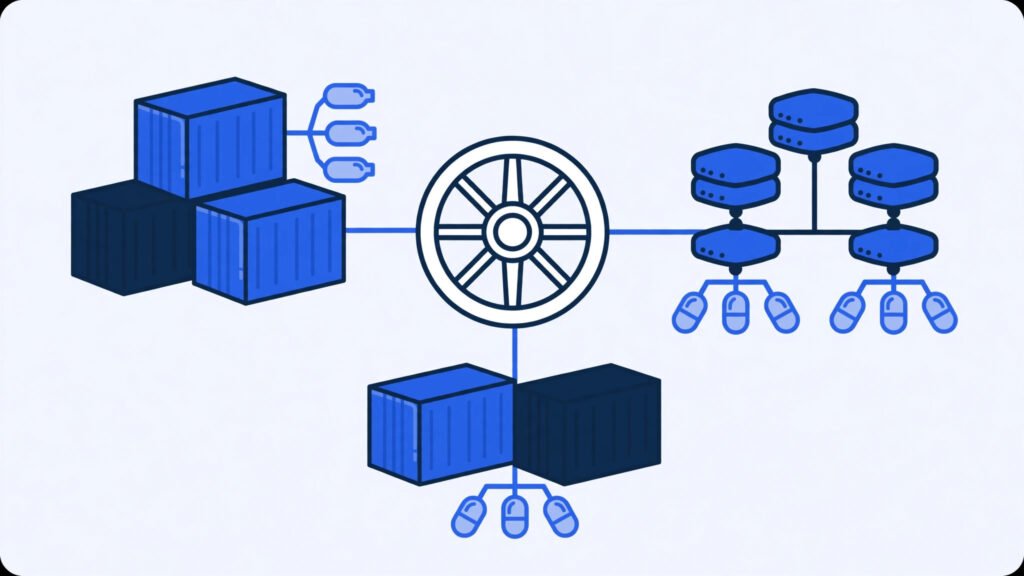
- The control plane makes decisions: it stores the desired state, schedules work, and watches the health of everything. Its main components are the API server (the front door everything talks to), etcd (the database of desired state), the scheduler (which decides where new work runs), and the controller manager (which drives reality towards the desired state).
- Worker nodes run the actual applications. Each node runs a kubelet (an agent that talks to the control plane and manages containers on that node) and a kube-proxy (which handles networking between services).
You rarely need to manage the control plane yourself as a beginner. Managed services (EKS, GKE, AKS) run it for you, and local tools (minikube, kind) run a single-node cluster on your laptop. What you do need to understand is the API: you talk to the control plane with kubectl, the command-line tool, and the control plane does the rest.
Core Concepts, One by One
Pod — the smallest unit
A Pod is the smallest deployable unit in Kubernetes. It usually holds one container, plus shared storage and a network address. Containers in the same Pod share an IP address and can talk to each other on localhost.
You almost never create Pods directly. You create a higher-level object that creates Pods for you — usually a Deployment. But when something goes wrong, the Pod is where you look: its logs, its status and its events tell you what happened.
Deployment — how you run an application
A Deployment says: run N copies (replicas) of this container image, and keep them running. If you ask for three replicas and one dies, the Deployment creates a replacement. If you change the image to a new version, it performs a rolling update — replacing Pods one by one, so the application stays available — and you can roll back with one command.
Service — a stable address for shifting Pods
Pods come and go, and their IP addresses change. A Service gives your application a stable name and address inside the cluster, and load-balances traffic across the healthy Pods behind it. The main types are:
- ClusterIP — reachable only inside the cluster (the default; use it for internal services such as a database).
- NodePort — exposes the Service on a port on each node (useful for learning, rarely for production).
- LoadBalancer — asks the cloud provider for an external load balancer (the normal way to expose a public application on EKS, GKE or AKS).
ConfigMap and Secret — configuration outside the image
Hard-coding configuration into a container image is a bad habit: the same image should run in development, staging and production with different settings. A ConfigMap stores non-sensitive configuration (feature flags, URLs, file contents) and a Secret stores sensitive data (passwords, tokens, certificates). Both can be injected into a Pod as environment variables or files.
A warning that matters in real work: a Secret is base64-encoded, not encrypted by default. Treat Secrets as sensitive, restrict who can read them with RBAC, and use a proper secrets manager in production.
Namespace — a way to organise a cluster
A Namespace is a virtual cluster inside a cluster. Teams commonly use dev, staging and prod namespaces, or one per team, to separate workloads, apply different resource limits and control access. Namespaces do not isolate network traffic by themselves — that is the job of NetworkPolicy.
Ingress — the front door
An Ingress routes external HTTP traffic to the right Service based on host name or URL path — for example, app.example.com to one Service and api.example.com to another. Ingress needs an Ingress controller running in the cluster to do the actual routing.
Volumes and PersistentVolumeClaims
Containers are ephemeral: when a Pod dies, its filesystem goes with it. A Volume gives a Pod storage, and a PersistentVolumeClaim (PVC) is a request for durable storage that survives Pod restarts — for example, a database’s data directory. For stateless web applications you usually need no persistent storage at all; for databases you always do.
A Runnable Example: Deploy nginx
Install minikube or kind and start a cluster, then try this. First check you can talk to the cluster:
kubectl cluster-info
kubectl get nodes
Create a Deployment running three copies of nginx:
# nginx-deployment.yaml
apiVersion: apps/v1
kind: Deployment
metadata:
  name: nginx-deployment
spec:
  replicas: 3
  selector:
    matchLabels:
      app: nginx
  template:
    metadata:
      labels:
        app: nginx
    spec:
      containers:
      - name: nginx
        image: nginx:1.27
        ports:
        - containerPort: 80
kubectl apply -f nginx-deployment.yaml
kubectl get pods
kubectl get deploymentsExpose it with a Service, then check it:
kubectl expose deployment nginx-deployment --type=NodePort --port=80
kubectl get services
kubectl logs -l app=nginx
Now try the operations that make Kubernetes useful:
# Scale to 5 replicas
kubectl scale deployment nginx-deployment --replicas=5

# Update the image (rolling update)
kubectl set image deployment/nginx-deployment nginx=nginx:1.28

# Watch the rollout, then roll back if needed
kubectl rollout status deployment/nginx-deployment
kubectl rollout undo deployment/nginx-deployment

# Clean up
kubectl delete deployment nginx-deployment
kubectl delete service nginx-deployment
If you can run that sequence, explain what each step did, and recover when a Pod fails, you understand the core of Kubernetes. Everything after this is depth, not a different subject.
Common Beginner Mistakes
- Treating Pods as permanent. Pods are cattle, not pets. Never store important data in a Pod’s filesystem, and never SSH into a Pod to “fix” it by hand — fix the Deployment or image instead.
- Using
latestas the image tag.latestchanges without warning and makes rollbacks unreliable. Pin a version, as in the example above. - No resource requests and limits. Without them, one greedy Pod can starve the others on a node. Set requests (what the Pod needs) and limits (the most it may use) from the start.
- Secrets in plain YAML committed to Git. Use a secrets manager or sealed secrets; never commit a real password.
- Skipping health checks. Readiness and liveness probes tell Kubernetes whether a Pod can receive traffic and whether it needs restarting. Without them, traffic can be sent to a Pod that is not ready.
- Learning YAML before concepts. If you cannot explain what a Deployment does in one sentence, more YAML will not help. Understand the object first, then write the manifest.
What to Learn Next
- Helm — a package manager for Kubernetes that turns manifests into reusable charts.
- kubectl tricks —
-o yaml,--dry-run=client,describe,logs -fand label selectors save hours of debugging. - Networking — Ingress, NetworkPolicy and DNS (CoreDNS) inside the cluster.
- Storage — StorageClasses and PVCs, especially if you will run databases.
- CKA certification — the hands-on Certified Kubernetes Administrator exam (2 hours, 15–20 practical tasks, 66% to pass, $445 per Linux Foundation listings) is a good goal once you are comfortable with kubectl and cluster troubleshooting. Its largest domain is Troubleshooting (30%).
- Docker Tutorial for Beginners: start with containers before orchestrating them.
- Linux Commands Every DevOps Engineer Should Know: the terminal skills this tutorial assumes.
Frequently Asked Questions
What is Kubernetes used for? Running containerised applications at scale: deploying them, keeping a desired number of copies running, routing traffic, updating them without downtime, and recovering automatically when containers fail.
Is Kubernetes the same as Docker? No. Docker builds and runs containers; Kubernetes orchestrates many containers across many machines. You need containers to use Kubernetes, but Kubernetes is not a replacement for Docker.
Do I need Kubernetes for a small project? Usually not. A single server with Docker Compose is simpler and cheaper for a small application. Kubernetes earns its complexity when you have multiple services, need high availability, or deploy frequently.
How long does it take to learn Kubernetes? The core concepts in this article can be learned in a few focused weeks. Being comfortable debugging a real cluster — the skill employers pay for — typically takes two to three months of regular practice.
What is the difference between a Pod and a Deployment? A Pod is a single running instance. A Deployment manages a set of identical Pods: it keeps the requested number running, updates them, and rolls back. You create Deployments; Kubernetes creates the Pods.
Conclusion
Kubernetes is simpler than it looks once you see the pattern: describe the desired state, and let the control plane maintain it. Learn Pods, Deployments, Services, ConfigMaps and Secrets first, practise the nginx example above until it feels routine, and only then add Helm, networking and storage. If you want the career context for this skill, read our DevOps Engineer Roadmap 2026.
Try it today: install minikube or kind, run the nginx Deployment above, scale it, update it, and roll it back — then delete it and do it again from memory.