Introduction
Every team that ships software has a CI/CD pipeline, whether they call it that or not. It is the path code travels from a developer’s commit to a running system in production — and the difference between a team that deploys ten times a day with confidence and a team that deploys once a month with dread is almost always the quality of that path.
CI/CD stands for continuous integration and continuous delivery (or, in some teams, continuous deployment — the distinction matters and is explained below). The idea is simple: every change is built, tested and packaged automatically, and every packaged change is deployable at any time. The pipeline is the automation that makes that true. Without it, integration is a manual event, testing is something somebody remembers to do, and deployment is a Friday-afternoon ceremony nobody wants to run.
This guide explains the whole pipeline: what CI and CD each mean, the stages a change passes through, the environments it travels across, a complete working example in GitHub Actions, the branching strategy that feeds it, how to roll back, and how to debug failures. For the tool-specific detail, see our GitHub Actions Tutorial, our Jenkins CI/CD Pipeline Tutorial, and our GitLab CI/CD Tutorial.
Version and cost note (28 Nov 2026): the example pipeline in this article uses actions/checkout@v7 and actions/setup-node@v6, the current majors at the time of writing. GitHub Actions billing is a dollar pool, not a minute count: the included compute usage is $12 a month on GitHub Free, $18 on Pro and Team, and $300 on GitHub Enterprise Cloud, and standard GitHub-hosted runners are free in public repositories. Re-check both the action versions and the allowance before copying the example into production.
What CI/CD Is — and What It Is Not
Continuous integration (CI) is the practice of merging every developer’s work into a shared branch frequently — daily at least, ideally several times a day — and verifying each merge with an automated build and test run. The point is to find integration problems within minutes of the commit that caused them, instead of at the end of a two-week feature branch.
Continuous delivery (CD) extends that: every change that passes CI is packaged into a deployable artifact and can be released to production at any time, usually at the push of a button. Continuous deployment removes the button — every passing change goes to production automatically. The three are often confused, and the difference is a decision about who approves a release, not about tooling: delivery keeps a human in the loop, deployment does not. Most teams start with delivery and only move to deployment when their tests and monitoring are strong enough to trust.
What CI/CD is not is equally important. It is not a tool: GitHub Actions, Jenkins and GitLab CI are ways of running a pipeline, not the pipeline itself. It is not a substitute for tests — a pipeline that runs no tests is a fast way to ship bugs. And it is not a one-time setup: a pipeline nobody owns rots quickly, as actions go out of date and tests get slower.
A good pipeline gives a team three things: speed, because the path from commit to production takes minutes instead of days; confidence, because every change has been built, tested and scanned the same way; and a record, because every deployment is traceable to a commit, a build and a person.
The Pipeline Stages, Step by Step
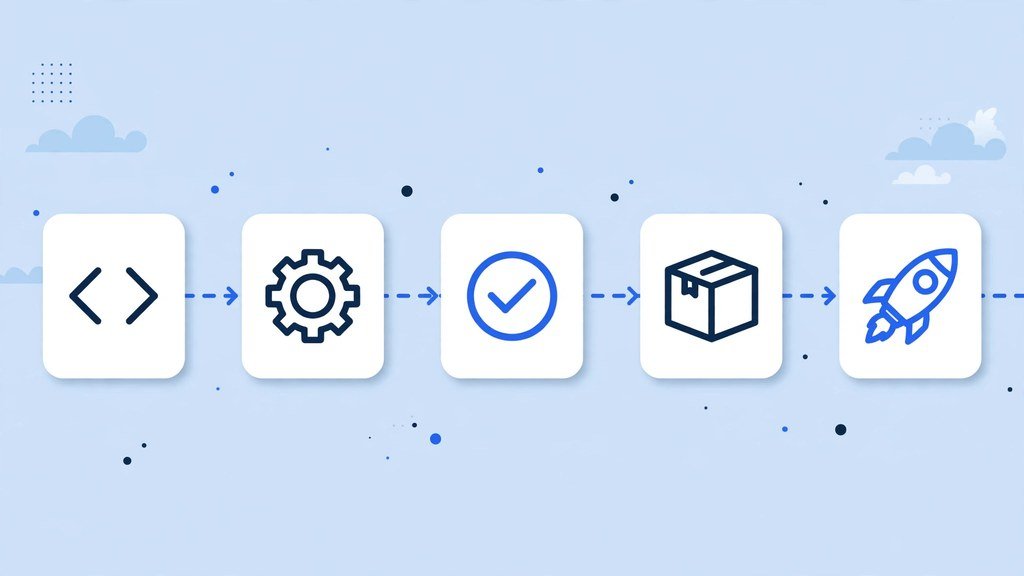
A pipeline is a sequence of stages. Each stage either passes, and the change moves on, or fails, and the pipeline stops. Failing fast is the design: a change that fails its tests should never reach packaging, and one that fails a security scan should never reach production. Small projects merge some stages; large ones split them further; the order is the same.
| Stage | What happens | What failure means |
|---|---|---|
| Source | Code is pushed or a pull request is opened | Nothing runs yet — the trigger is the event itself |
| Build | Code is compiled or bundled, dependencies installed | The code does not compile, or a dependency is missing |
| Test | Unit, integration and end-to-end tests run | A test fails, or coverage drops below the threshold |
| Security scan | Dependencies and code are scanned for vulnerabilities and secrets | A known vulnerability or a leaked secret is found |
| Artifact | The built output is packaged and stored with a version | The package cannot be built or the registry rejects it |
| Deploy | The artifact is released to an environment | The deployment fails, or the health check after it fails |
Source is the trigger: a push, a pull request, a tag, or a schedule. Most pipelines run their full test suite on pull requests and only deploy from the main branch, so the same workflow file serves two purposes depending on what triggered it.
Build turns source code into something runnable: installing dependencies and bundling for Node.js, compiling for a compiled language, building an image for a containerised app. The build must be reproducible — the same commit should always produce the same output. That is why the example below uses npm ci instead of npm install: npm ci installs exactly the versions locked in the lockfile.
Test is split into layers: unit tests run first because they are fast, integration tests check that services work together, and end-to-end tests exercise the system the way a user would. The pipeline should fail on the cheapest test first — there is no point running a ten-minute end-to-end suite if a unit test failed in ten seconds.
Security scan has become a stage in its own right. Dependency scanning checks the libraries you use against databases of known vulnerabilities; secret scanning looks for API keys and passwords accidentally committed; static analysis looks for dangerous patterns in your own code. A scan that fails the build is annoying the first time it happens and a lifesaver the first time it catches a real credential.
Artifact is where the built output becomes a named, versioned thing — a container image tagged with the commit SHA, a zip file, a package. The tag is the link between the code and the deployment: when production is running version abc1234, you know exactly which commit that is. Never deploy from a branch name or a “latest” tag in production — those move, and when something breaks you will not know what you are running.
Deploy is the stage that touches a live environment. It takes the artifact, puts it where the environment can run it, and then verifies that it works — a health check, a smoke test, a check that the new version is actually serving traffic. A deploy stage without a verification step is only half a stage: the pipeline has no way to know whether the release succeeded.
Environments and Promotion
Code does not go straight from a developer’s laptop to production. It travels through environments — separate copies of the system, each with its own configuration, data and access rules — and each one is a gate. The standard three are development, staging and production, and the discipline is in what each one is for.
Development (dev) is where the newest, least-tested code runs. It is rebuilt constantly, it breaks often, and nobody outside the team should ever see it. Its data is fake or anonymised.
Staging is the dress rehearsal. It mirrors production as closely as the team can afford: the same infrastructure shape, the same configuration, realistic data, and the same deployment process. The most common staging failure is drift from production — a different database version, a missing environment variable — after which it stops predicting anything.
Production (prod) is the live system real users touch. Access is restricted, changes go through the pipeline only, and every deployment is recorded. Nothing is ever edited by hand in production — if it is, the next pipeline run will either overwrite it or, worse, not notice it, and the system will be in a state nobody can reproduce.
Promotion is the movement of one artifact between environments: the same image that passed staging is the image that goes to production. If you rebuild the code for production, you are deploying something staging never tested. Build once, promote the artifact, and change only configuration between environments — environment variables, not code.
Two controls protect production: an approval gate, where a deployment waits for a human to approve it (a protected environment with required reviewers in GitHub Actions), and secrets scoping, where production credentials live in the environment’s secrets, not the repository, so a pull request workflow can never read them.
A Complete Working Example — GitHub Actions Pipeline
Here is a complete pipeline for a small Node.js web application. It lives in .github/workflows/cicd.yml in the repository — workflow files must be stored in the .github/workflows directory, with a .yml or .yaml extension — and it does the whole journey: build and test on every push and pull request, then deploy to production only from the main branch.
name: CI/CD Pipeline

on:
  push:
    branches: [main]
  pull_request:
    branches: [main]

permissions:
  contents: read

jobs:
  build-and-test:
    runs-on: ubuntu-latest
    steps:
      - name: Check out code
        uses: actions/checkout@v7

      - name: Set up Node.js
        uses: actions/setup-node@v6
        with:
          node-version: '22'
          cache: npm

      - name: Install dependencies
        run: npm ci

      - name: Run tests
        run: npm test

      - name: Build the app
        run: npm run build

  deploy:
    needs: build-and-test
    if: github.ref == 'refs/heads/main'
    runs-on: ubuntu-latest
    environment: production
    steps:
      - name: Check out code
        uses: actions/checkout@v7

      - name: Set up Node.js
        uses: actions/setup-node@v6
        with:
          node-version: '22'
          cache: npm

      - name: Install dependencies
        run: npm ci

      - name: Build the app
        run: npm run build

      - name: Deploy to production
        run: ./scripts/deploy.sh
        env:
          DEPLOY_TOKEN: ${{ secrets.DEPLOY_TOKEN }}
Every part of this file is doing a specific job:
- `name` is what appears in the Actions tab. Give the workflow a name a teammate can recognise at 2 a.m.
- `on` defines the triggers. This workflow runs on pushes to main and on pull requests targeting main. Pull requests get the build and test job only — the deploy job’s if condition excludes them, because a pull request should never deploy.
- `permissions: contents: read` scopes the workflow token to read-only access to the repository.
- `jobs` are the units of work. Each job runs on a fresh runner, which is why the deploy job checks the code out again instead of reusing the first job’s files.
- `runs-on: ubuntu-latest` picks a GitHub-hosted Linux runner. The runner is a disposable virtual machine: it starts clean, runs the job, and is discarded.
- `uses: actions/checkout@v7` checks the repository out onto the runner. The @v7 pins the major version — the current major as of 28 November 2026. Pinning a major version means you get patch updates automatically but never a breaking change without choosing it.
- `uses: actions/setup-node@v6` installs Node.js 22 and, with cache: npm, caches the dependency directory between runs so npm ci is faster the second time.
- `run: npm ci` installs exactly the versions in the lockfile. `run: npm test` runs the test suite, and `run: npm run build` produces the deployable output. Any of these failing stops the job — and the pipeline — immediately.
- `needs: build-and-test` on the deploy job means deployment cannot start until the build and test job has passed. This is the dependency that makes the pipeline a pipeline rather than two unrelated jobs.
- `if: github.ref == ‘refs/heads/main’` restricts the deploy job to the main branch. A pull request run has a different ref, so the condition is false and the job is skipped.
- `environment: production` targets a GitHub environment named production. That is where the approval gate and the production secrets live — configure required reviewers on the environment in the repository settings, and the deploy job will wait for approval before running.
- `env: DEPLOY_TOKEN: ${{ secrets.DEPLOY_TOKEN }}` passes a secret into the deploy step as an environment variable. Secrets are never printed in logs — GitHub masks them — and they are never available to pull request runs from forks.
To use this in your own project, replace ./scripts/deploy.sh with your real deployment step — an scp of the build output, a kubectl apply, or your hosting provider’s CLI — and put its credentials in the production environment’s secrets. The shape does not change: build, test, gate, deploy, verify. Our GitHub Actions Tutorial covers triggers, jobs, environments and secrets in more depth; the same shape maps onto Jenkins — see our Jenkins CI/CD Pipeline Tutorial — or GitLab CI, covered in our GitLab CI/CD Tutorial.
Branching Strategy in Brief
A pipeline is only as good as the branching strategy that feeds it, because the strategy decides how often code is integrated — and integration frequency is what CI exists to support. There are two strategies that matter, and the choice between them is the most argued-about decision in CI/CD.
Trunk-based development is the strategy CI was designed for. There is one long-lived branch, usually main, and developers work on short-lived branches — hours or a day or two at most — that merge back constantly. Feature flags hide unfinished work from users instead of long-lived branches hiding it from other developers. The pipeline runs on every merge, and because merges are small and frequent, a failure is always attributable to a small change. This is the strategy most teams should use, and it is the only one that works well with continuous deployment.
GitFlow is the older alternative: long-lived develop and main branches, plus feature, release and hotfix branches with strict rules about what merges where. It fits teams with scheduled releases, but it fights CI: long-lived branches mean big, infrequent merges, and big merges are where integration problems hide.
Whichever strategy you choose, three rules apply to both. First, never commit directly to the branch that deploys to production — every change goes through a pull request and the pipeline. Second, keep branches short-lived: a branch that lives for three weeks is a merge conflict waiting to happen. Third, protect the main branch: require the pipeline to pass before a merge is allowed, and require at least one review. Branch protection is configured in the repository settings, not in the pipeline file, and it is what turns “the pipeline must pass” from a convention into a rule.
Rollback Strategies
Every team ships a bad release eventually. The question is how long it takes to undo — and that is decided before the release, by which rollback strategy you have prepared. There are five, and a mature team has more than one.
Revert the commit is the simplest: undo the change in Git and let the pipeline deploy the previous state. It works well when the bad change is a single commit and the pipeline is fast. It fails when the change includes a database migration that cannot be reversed, or when several commits have landed since and reverting one means untangling the others.
Redeploy the previous artifact is faster and safer. Because the pipeline versions every artifact, the last good image or package still exists — deploy it again. This is why the artifact stage matters: if you deploy from a branch instead of a versioned artifact, there is no “previous version” to redeploy. In the example pipeline above, the previous artifact is the build from the previous green run on main.
Blue-green deployment keeps two identical production environments; only one serves traffic. A release goes to the idle environment, is verified there, and traffic switches over. If the new version misbehaves, traffic switches back — the old environment is still running, untouched. The cost is running two environments.
Canary deployment releases the new version to a small fraction of traffic — 1%, then 5%, then 25% — and watches error rates and latency at each step. If the canary looks healthy, the rollout continues; if not, it is stopped and the old version keeps serving everyone. It catches problems tests miss, because it tests the release against real traffic, but it needs traffic-splitting infrastructure, so it is usually a platform feature.
Feature flags are the quietest rollback of all: the new code ships to production switched off, and is enabled gradually or for specific users. Rolling back means flipping the flag, not deploying anything. Dead flags must be removed, or the codebase fills with branches nobody understands.
One rule covers all five: practise the rollback before you need it. A rollback you have never run is a plan, not a capability. Run it in staging, time it, and write down the steps. The team that can roll back in five minutes treats a bad release as a footnote; the team that cannot treats it as an incident.
Common Failure Modes and How to Debug Them
Pipelines fail, and the failure is usually in one of a handful of places. Knowing the pattern saves most of the debugging time.
- The YAML is invalid. Indentation, a missing colon, a tab instead of spaces — workflow files are YAML, and YAML is unforgiving. The error message usually names the line. Paste the file into a YAML validator, or run it through your editor’s YAML linter, before pushing. The most common single mistake is on: being parsed oddly by some tools; GitHub handles it, but if your editor complains, quoting it as “on”: is harmless.
- A test is flaky. It passes locally, fails in the pipeline, passes again on re-run. Flaky tests are usually timing-dependent — a test that assumes a service is ready, a sleep that is slightly too short, a test that shares state with another test. The fix is to make the test deterministic, not to re-run the pipeline until it goes green. A test that is re-run until it passes is a test that has stopped testing anything.
- A dependency changed. The build worked yesterday and fails today with no code change. Usually a dependency resolved to a new version, or a registry was briefly unavailable. Lockfiles and npm ci prevent the first; retrying the run handles the second. If the pipeline has no lockfile, add one — unpinned dependencies are the most common cause of “it worked yesterday” failures.
- A secret is missing or wrong. The step fails with an authentication error, or the secret is empty. Secrets are scoped: a secret defined in the repository is not available in an environment, and a secret defined in an environment is not available to a pull request run. Check where the secret is defined, check the name for a typo, and remember that a secret’s value is never shown in logs — you cannot verify it by reading the output.
- The runner ran out of included usage. On a private repository, a job that used to run now fails with a billing error. Since 28 October 2026 the included usage is a dollar pool — $12 a month on GitHub Free, $18 on Pro and Team, $300 on Enterprise Cloud — and it is shared between Actions jobs and other metered usage. Check the billing page to see what consumed it, and remember that public repositories and self-hosted runners do not draw from it.
- The deploy step fails but the build passed. The artifact is fine; the environment is not. Check the target first: is the server reachable, is the disk full, is the service already running, did a configuration value change? The deploy script should verify the deployment itself — a health check after the deploy step — so the pipeline reports a failed deployment instead of a silent one.
The general debugging method is the same for all of them: read the log from the first failing step, not the last; reproduce the failing step locally with the same commands; and fix the cause, not the symptom. And when a fix is a workaround — a retry, a longer sleep, a skipped test — write down why, because workarounds in pipelines have a way of becoming permanent.
FAQ
What is the difference between continuous delivery and continuous deployment?
Continuous delivery means every passing change is deployable at any time, usually after a human approves the release. Continuous deployment removes the human: every passing change goes to production automatically. The tooling is the same; the difference is who decides to release.
Do I need Kubernetes or Docker to have a CI/CD pipeline?
No. A pipeline is about automating build, test and deploy — it works for a static website, a script, or a server application deployed with scp. Containers and Kubernetes change what the deploy step does, not whether you need a pipeline.
How long should a pipeline take?
Fast enough that developers do not avoid running it — under ten minutes for build and test on a pull request is a good target. Longer than that, developers start batching changes to avoid the wait, which defeats the purpose of continuous integration. Speed up the slowest step, usually the test suite or a missing cache, rather than splitting the pipeline into pieces that run less often.
Is GitHub Actions free?
For public repositories, standard GitHub-hosted runners are free. For private repositories, each plan includes a monthly dollar pool of compute usage — $12 on GitHub Free, $18 on Pro and Team, $300 on Enterprise Cloud since 28 October 2026 — and usage beyond that is billed per minute. Self-hosted runners do not draw from it.
What is the single most common CI/CD mistake?
Deploying from a branch instead of a versioned artifact. When production is running “the latest code from main”, nobody can say exactly which commit is live, and there is no previous version to roll back to. Build once, tag the artifact with the commit SHA, and deploy that artifact — it is the one habit that makes every other part of CI/CD work.
Conclusion
A CI/CD pipeline is not a tool you install; it is a discipline you practise. Every commit is built and tested the same way, every passing change becomes a versioned artifact, that artifact is promoted through environments that mirror production, and every release can be undone in minutes. The example in this article is a complete version of that discipline in about sixty lines of YAML — copy it, adapt the deploy step, and protect the main branch so the pipeline is a rule rather than a suggestion.
From there, the work is maintenance: keep the actions up to date, keep the tests fast, keep staging identical to production, and practise the rollback. The teams that deploy with confidence are the ones whose pipelines are boring, green and trusted.
Sources checked 28 Nov 2026: GitHub Actions workflow syntax documentation at docs.github.com (workflow files in .github/workflows, .yml/.yaml, on triggers, jobs, runs-on, needs, environment, permissions); GitHub Actions billing documentation at docs.github.com (included compute usage $12 Free / $18 Pro and Team / $300 Enterprise Cloud per month, expressed as a monetary amount not minutes since 28 Oct 2026; standard runners free in public repositories; self-hosted runners free; standard Linux runner $0.006 per minute as the guide rate); GitHub Marketplace (actions/checkout v7, latest v7.0.1; actions/setup-node v6) — action versions should be re-checked at publication as new majors ship frequently. External references: GitHub Actions workflow syntax · GitHub Actions billing.
—